Read a document
- Scan the document, or import a PDF from the library with Import → Files.
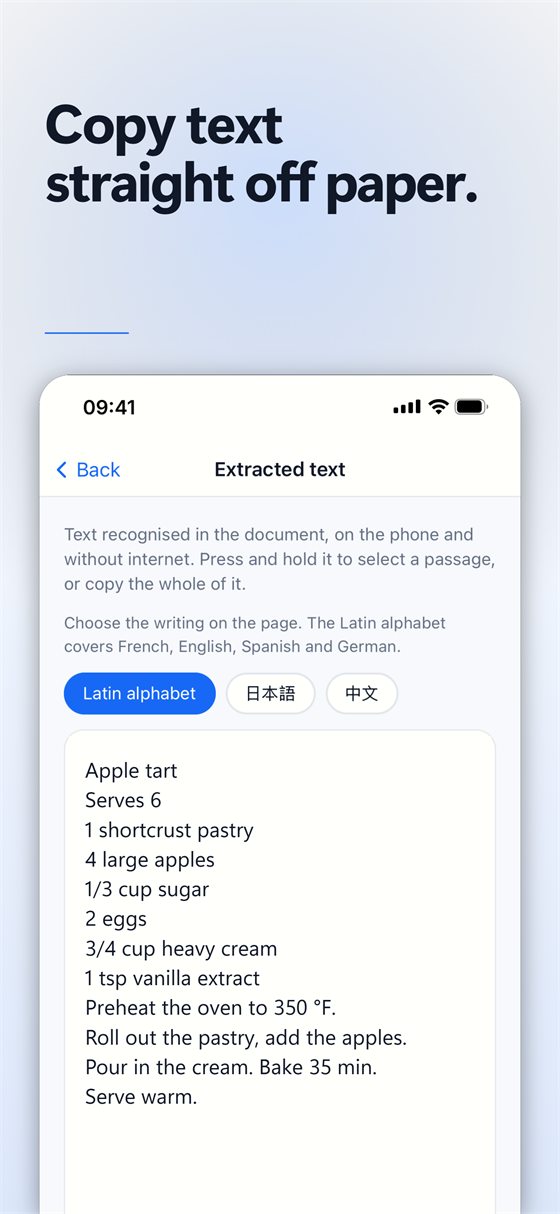
- Open the document and tap Extract the text.
- Choose the writing on the page. The Latin alphabet covers French, English, Spanish and German; Japanese, Chinese and Korean are also available.
- Wait while Scan Cam reads each page. The text appears when it is done.
Copy what you need
Press and hold the text to select a passage, or tap Copy the text to copy all of it, then paste it into a message, a note or a spreadsheet.
It stays on your phone
The text is read by the iPhone itself, with no internet connection, and the contents of your documents are never sent to an outside service.
Free or Pro? Text recognition is part of the Pro subscription, with a 7-day free trial; cancelling before it ends costs nothing.
Getting a better result
- If nothing is recognised, scan the page again: a sharper, better-lit scan often gives a better result.
- Use Filters to remove shadows before reading.
- An imported PDF becomes pages, like a scan: its original text can no longer be selected, but text recognition can read it again.
- Tap Read the document again after changing the writing you selected.
The same reading is used to export a document to Word (.docx) or Excel (.xlsx) with Pro.
Try Scan Cam
Scan Cam is free to download. Scanning, folders, filters and PDF export are free with no time limit; the Pro subscription adds the extra tools, and starts with a 7-day free trial.
Download on the App Store