Scan the pages
- Open Scan Cam and tap Scan a document. The first time, the iPhone asks once for permission to use the camera.
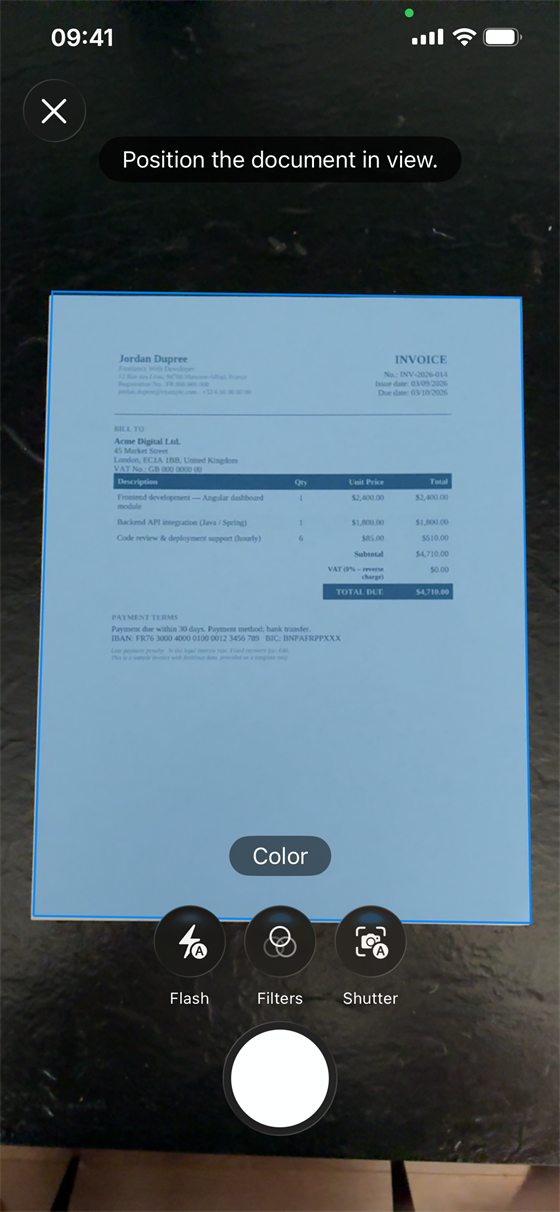
- Frame the first sheet. Scan Cam finds the edges and straightens the page on its own, even if you hold the phone at an angle.
- Capture the next sheets one after another, then confirm. Your pages are assembled into one PDF document on the phone.
- Forgot a page? Open the document and tap Add a page: it joins the same document.
Tidy the document
The page thumbnails sit under the large preview. Hold a thumbnail and drag it to put the pages in another order. The cross on a thumbnail takes that page out; it cannot be brought back, so Scan Cam asks first. A page that came out sideways is turned with the button on the large preview.

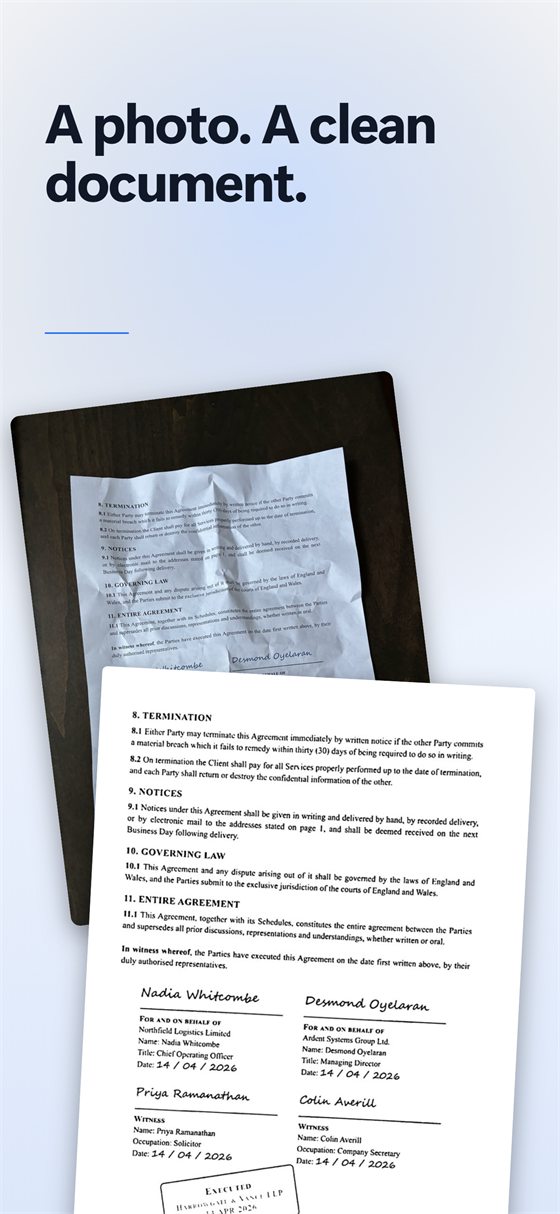
If a page has a shadow across it, open Filters and turn on Remove shadows. The original photograph is always kept, so you can switch it off again.
Send it as one PDF
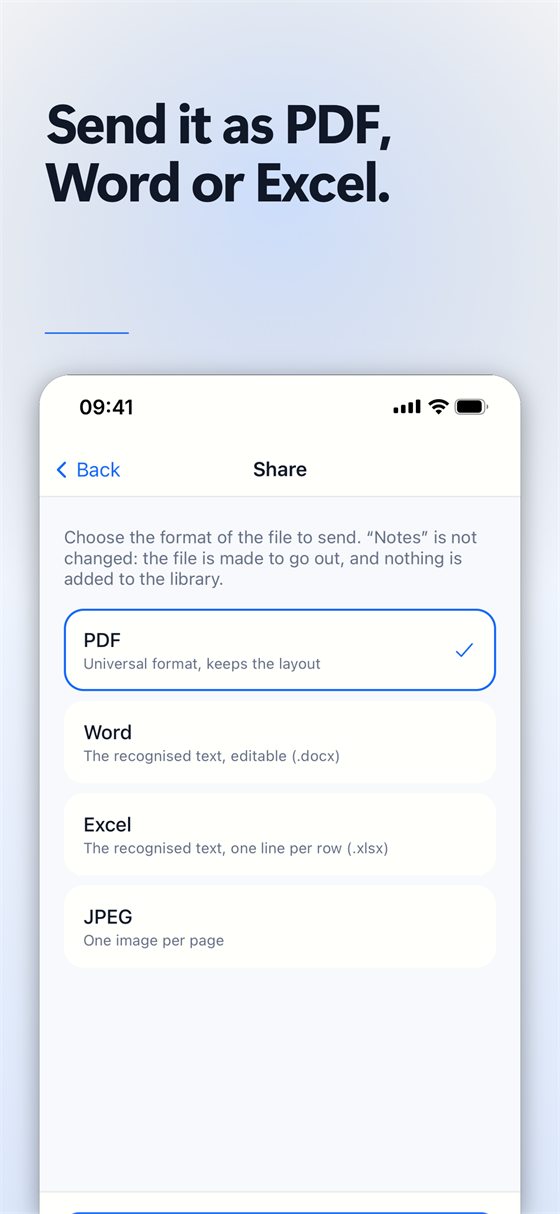
- Open the document and tap Share.
- Choose PDF (JPEG is also free).
- Send the file, save it to the Files app, or print it.
Free or Pro? All of this is free, with no limit on pages or documents. Free PDFs carry a small “Scanned with Scan Cam” line at the foot of the page; the Pro subscription removes it.
Tips for a clean scan
- Put the paper on a flat, dark surface, so the edges stand out.
- Light the page from the side or from above, so your hand and the phone do not cast a shadow.
- Scan one document at a time, so each PDF is named and filed on its own.
Try Scan Cam
Scan Cam is free to download. Scanning, folders, filters and PDF export are free with no time limit; the Pro subscription adds the extra tools, and starts with a 7-day free trial.
Download on the App Store