Scan a receipt
- Open Scan Cam and tap Scan a document.
- Lay the receipt flat on a dark surface and frame it. The edges are found and the page is straightened for you.
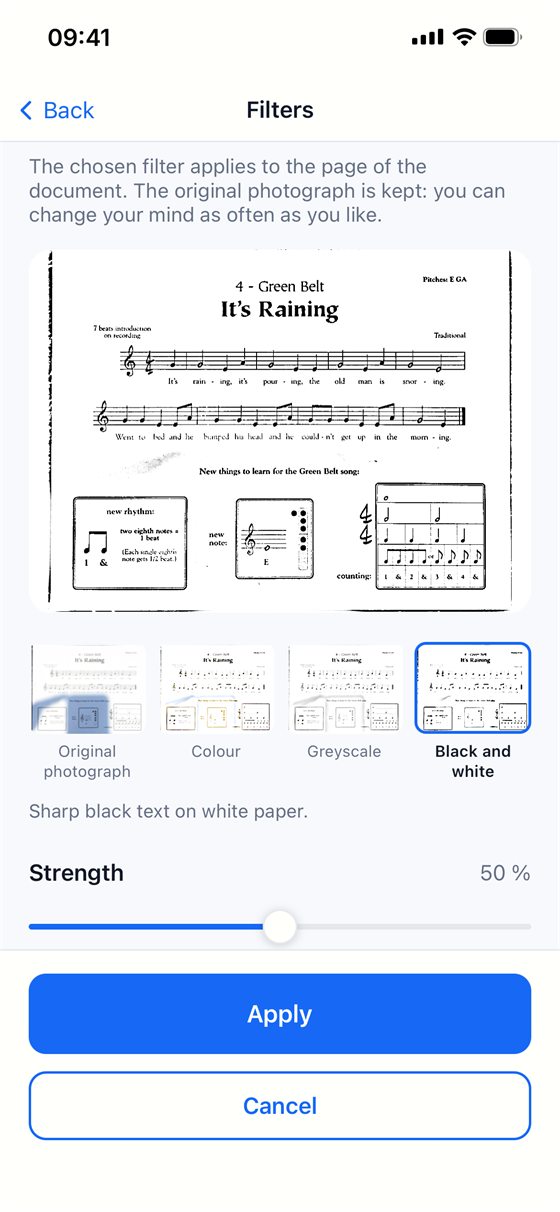
- Open Filters. Black and white usually gives the most readable result on thermal paper; if the paper is grey or creased, turn on Remove shadows too.
- Adjust the strength with the slider until the printing is crisp, then tap Apply. The original photograph is kept, so you can change your mind later.
File it so you can find it
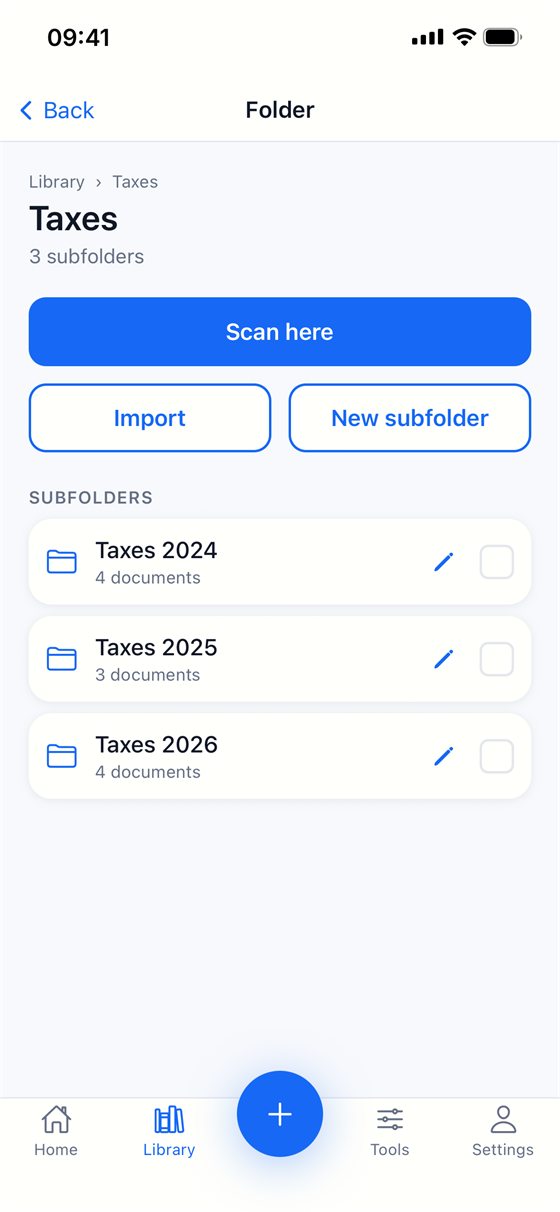
Open Library and tap New folder to make a folder such as “Receipts 2026”, with subfolders by month or by category if you like. Move each scan into the right folder.
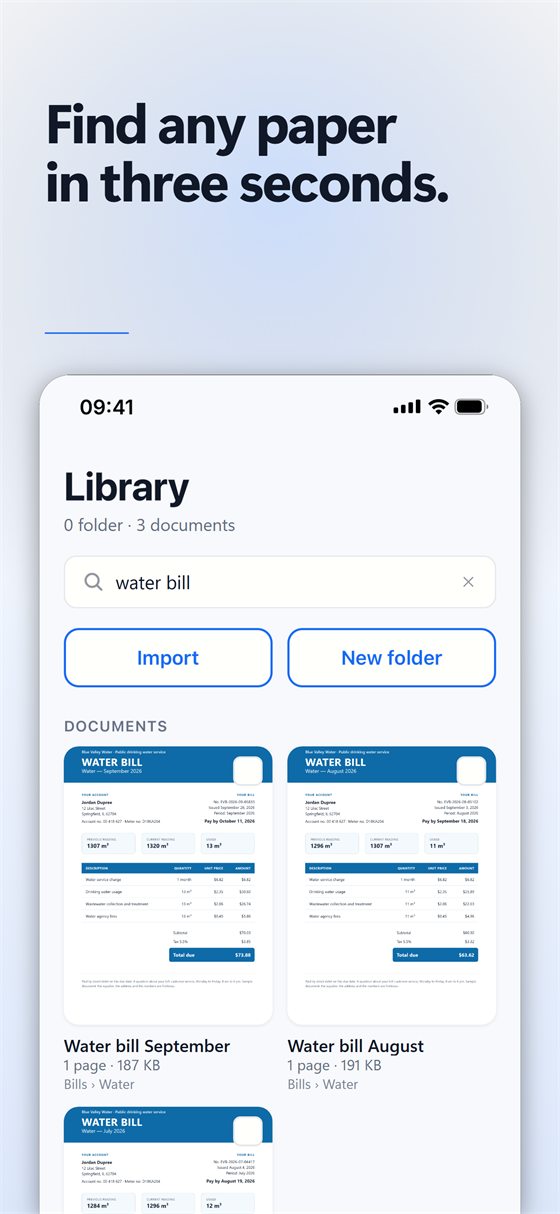
Give each document a name you will recognise, such as the shop and the date. The search box in the library finds files and folders by name, including those filed deep inside a folder.
Send them to your accountant
Open a receipt, tap Share, and send it as a PDF by mail or message, or save it to the Files app. For a whole folder of documents, use Settings → Export everything: every document comes out as a PDF, filed in its folder.
Free or Pro? Scanning, filters, folders, search and PDF export are free. With Pro, Extract the text reads a receipt on the phone, with no internet, so you can copy the total or the date into a spreadsheet.
Tips
- Scan receipts the same day: thermal paper fades within months.
- One receipt per document keeps naming and filing simple.
- Keep the paper original when the law of your country requires it; a scan is a convenient copy, not always a legal replacement.
Try Scan Cam
Scan Cam is free to download. Scanning, folders, filters and PDF export are free with no time limit; the Pro subscription adds the extra tools, and starts with a 7-day free trial.
Download on the App Store