Open the PDF in Scan Cam
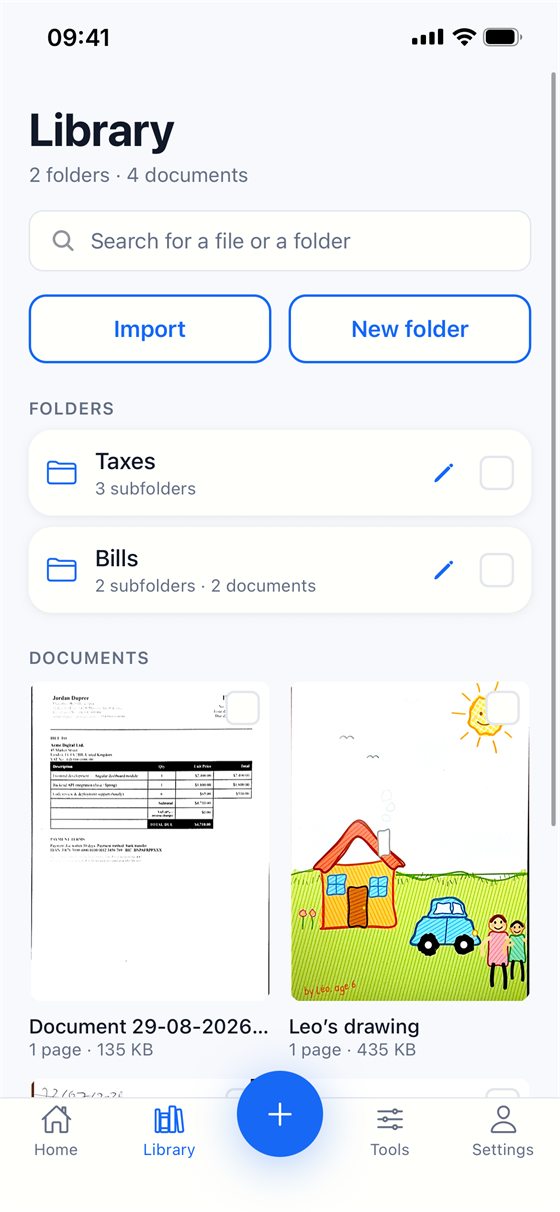
If the PDF is not in your library yet, tap Import → Files and pick it. Each page becomes a page of the document, like a scanned page. A password-protected PDF, or one of more than 100 pages, is refused.
Pick the pages
- Open the document and tap Extract pages.
- Tick the pages you want to keep. Select all and Deselect all save time on long documents.
- Tap Create a new document.
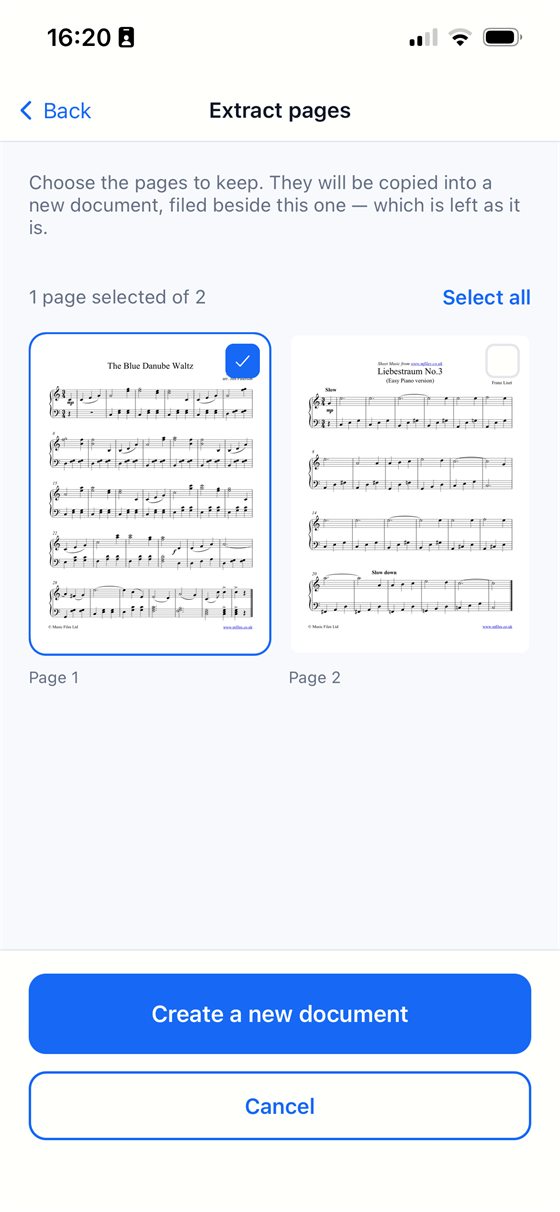
The chosen pages are copied into a new document, filed beside the original, which is left as it is. Keeping every page is refused on purpose: that would simply be a copy.
Send the new document
Open it, tap Share, choose PDF, and send it or save it to the Files app.
Free or Pro? Extracting pages is part of the Pro subscription, which starts with a 7-day free trial; cancelling before it ends costs nothing. Scanning, importing and exporting a PDF stay free.
Good to know
- Because pages are copied, deleting the new document later does not affect the original, and the other way round.
- To send only one page as an image, extract it first, then share it as JPEG.
Try Scan Cam
Scan Cam is free to download. Scanning, folders, filters and PDF export are free with no time limit; the Pro subscription adds the extra tools, and starts with a 7-day free trial.
Download on the App Store