Bring the PDFs into Scan Cam
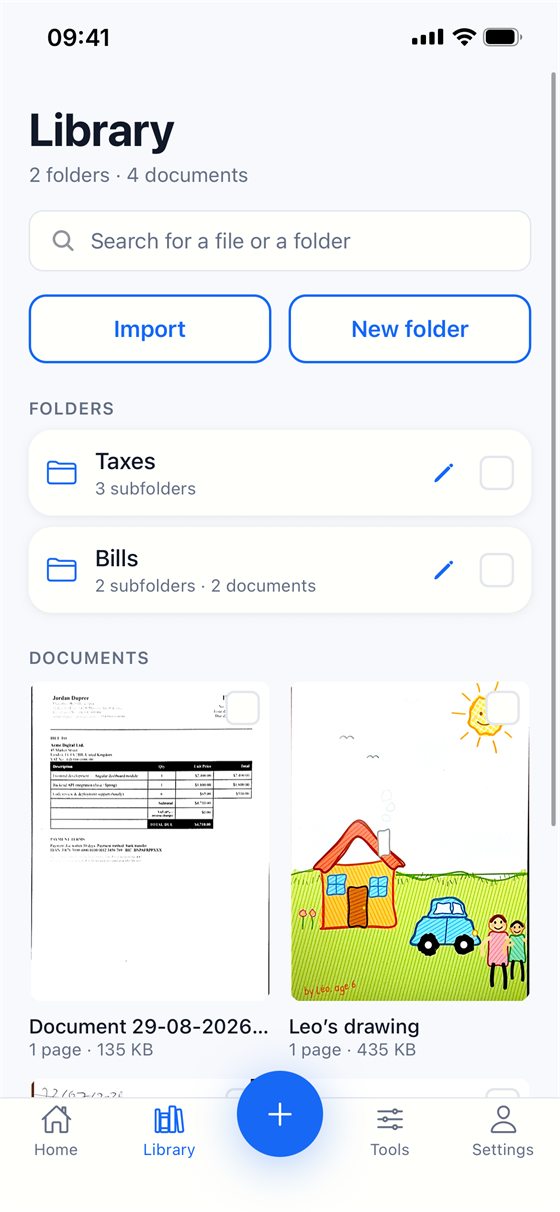
Documents you scanned are already in the library. To add a PDF you already have, tap Import → Files in the library and pick it: each page becomes a page of a document, and importing is free. A password-protected PDF, or one of more than 100 pages, is refused.
Merge them
- In the library, tick at least two documents. You can open a folder to tick more: what is already ticked stays ticked.
- Tap Merge in the bar that appears. (You can also start from Tools → Merge: tick the documents there and tap Continue.)
- Put the documents in order with the arrows, and use the cross to take one out. Scan Cam tells you how many pages the new document will have.
- Tap Merge to confirm. Nothing is created until you do.
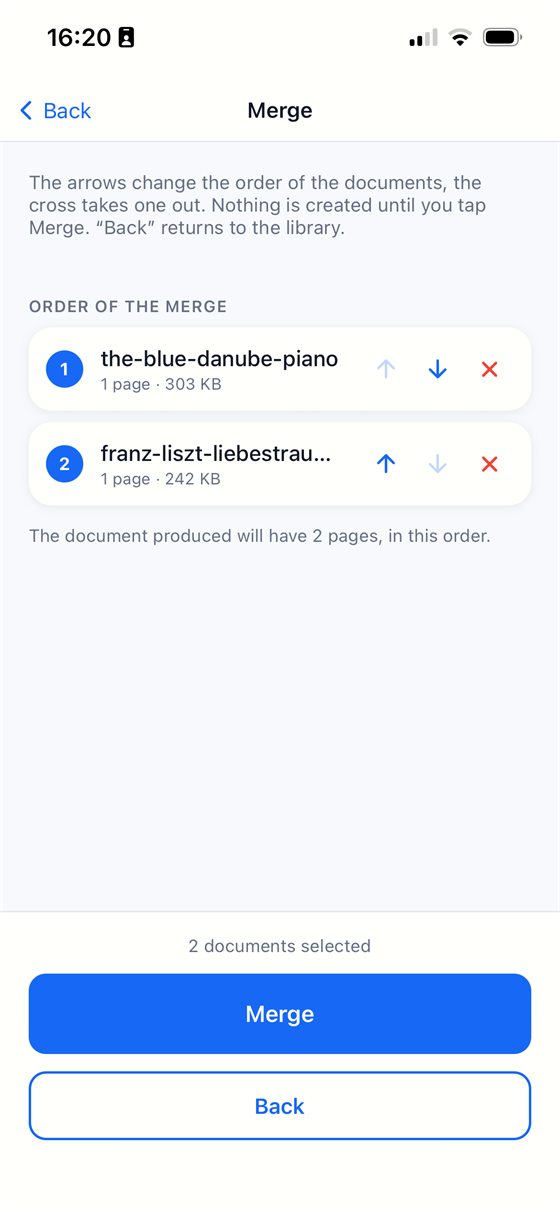
The result is a new PDF document in your library. Your original documents keep all their pages: merging copies, it does not cut.
Send it
Open the merged document, tap Share, choose PDF, and send it or save it to the Files app.
Free or Pro? Merging is part of the Pro subscription, which starts with a 7-day free trial; cancelling before it ends costs nothing. Importing, scanning and exporting a single PDF stay free.
Tips
- Whatever the documents were (scans, photos, imported PDFs), the merged result is always a PDF.
- Need only some pages of the result? See the guide on extracting pages.
Try Scan Cam
Scan Cam is free to download. Scanning, folders, filters and PDF export are free with no time limit; the Pro subscription adds the extra tools, and starts with a 7-day free trial.
Download on the App Store